
Quick answer
Open Killer Vibe, select Counter-Strike 2, assign a short clip to one supported event, preview it, choose your output device, set the volume, enable the event, and test it in CS2. Playback occurs only when Killer Vibe receives that supported event through Overwolf; it is not sent into voice chat.
Before you start
- Install and open Overwolf and Killer Vibe on the Windows PC where you play CS2.
- Update CS2, update Overwolf, and update Killer Vibe before diagnosing missing events.
- Connect the headphones, speakers, or virtual audio route you plan to use.
- Start with one short clip at a low volume so the test does not cover footsteps or team communication.
- Use a casual, practice, or otherwise low-risk session for the first event test.
Supported CS2 events
Killer Vibe's released Counter-Strike 2 catalog contains the following events. It does not claim economy, weapon, or clutch triggers that are absent from this list.
- Kill
- Death
- Assist
- Match Start
- Match End
- Round Start
- Round End
Configure your first CS2 reaction
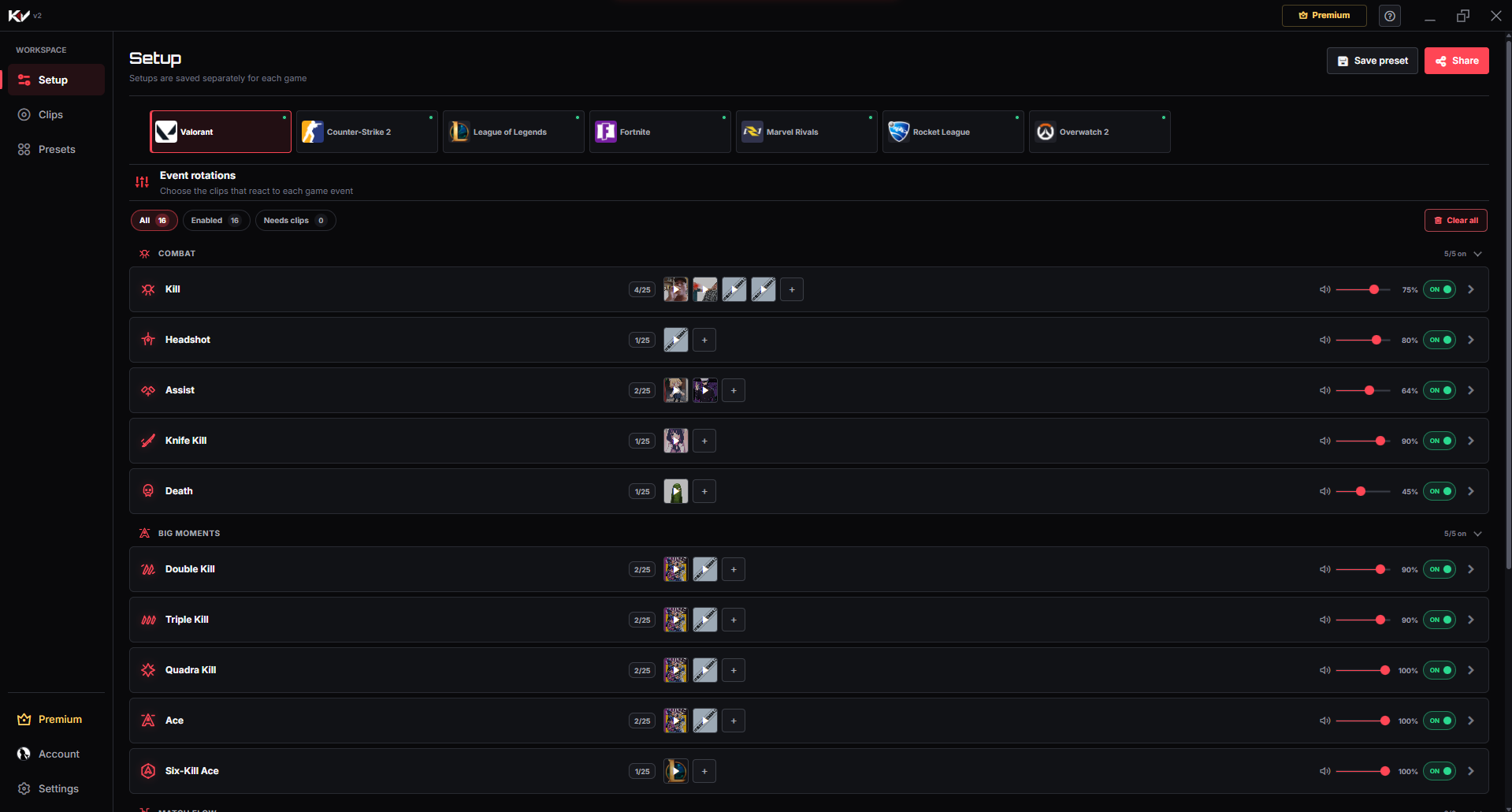
- Open Setup. Launch Killer Vibe and go to the Setup workspace.
- Select Counter-Strike 2. Confirm the CS2 event cards appear before assigning anything.
- Choose one event. Begin with Kill, Death, Assist, Round Start, Round End, Match Start, or Match End—whichever you can test safely.
- Add a clip. Choose an available searched sound or a local MP3/OGG file from your PC.
- Preview the clip. Confirm it loads, starts cleanly, and is short enough not to mask important game audio.
- Choose the output device. Select the device you actually monitor and set a conservative event volume.
- Enable the event. Confirm the event is enabled and the assigned clip remains visible after you leave and return to Setup.
- Launch CS2 and test. Trigger the selected supported event and listen on the chosen device.
How to verify the setup
- The clip plays during preview.
- The CS2 event card shows the assignment and enabled state.
- Playback reaches the output device selected in Killer Vibe.
- The same clip plays when the matching supported event occurs in CS2.
If you record or stream, make a short OBS recording and check both the audio meter and saved file. Hearing the sound locally does not prove OBS captures that route.
Troubleshooting missing events or silent playback
The CS2 event list is missing: confirm Counter-Strike 2 is selected, then restart and update Overwolf and Killer Vibe. Event availability can change after a platform or game update.
Preview is silent: reselect the output device, check its Windows volume, and try a known-good clip.
Preview works but gameplay is silent: verify the event is enabled, keep Overwolf running, and test an event that appears in the current CS2 list.
Only some events work: compare the failing label with the current Setup screen. Different events may become available at different points in a match.
An overlay is not visible: confirm the Overwolf overlay is enabled for CS2. If needed, test a display mode compatible with your current Overwolf setup; do not change settings when event audio already works without the overlay.
OBS is silent: capture the same output device or audio route selected in Killer Vibe, then make another recording.
Limits to know
- Killer Vibe can react only to CS2 events currently exposed through its Overwolf game-event provider.
- The released catalog does not include a reaction for every action that can happen in Counter-Strike 2.
- Clips play through the selected output device; teammates do not hear them through voice chat automatically.
- Stream capture requires the selected audio route to be included and tested in the streaming software.
- Overlay behavior and performance depend on the current game, Overwolf version, display mode, and PC configuration.
Review the verified CS2 event descriptions and audio limits, or use the local MP3/OGG import guide for custom clips.