
Quick answer
Choose a manual hotkey soundboard when you want to fire any clip at an exact moment. Choose an event-driven soundboard when you want configured clips to react to supported Valorant events without another keypress. Killer Vibe is built for the second workflow; it does not replace manual control for moments outside its verified event list.
Which type should you choose?
Choose manual hotkeys when
- You need complete control over the exact playback moment.
- You use sounds unrelated to a game event.
- You already have comfortable spare keys or a control deck.
Choose event-driven playback when
- You want the same reaction each time a supported event arrives.
- You do not want another keybind during combat.
- You are comfortable testing the game-event and audio route first.
Manual hotkey vs event-driven soundboards
| Comparison point | Manual hotkey | Killer Vibe event-driven |
|---|---|---|
| Trigger method | You press a mapped key or button. | A configured clip plays when a supported Overwolf event is received. |
| Clip source | Depends on the tool; local files are common. | Available sound search or a local MP3/OGG file. |
| Output behavior | Depends on the soundboard and routing you configure. | Plays through the output device selected in Killer Vibe; no microphone or voice-chat injection. |
| Setup effort | Map clips and memorize keys or buttons. | Select Valorant, assign clips to supported events, choose output, enable, and test. |
| Limitations | Uses a manual input and can compete with existing binds. | Only reacts to events currently exposed through the game-event provider. |
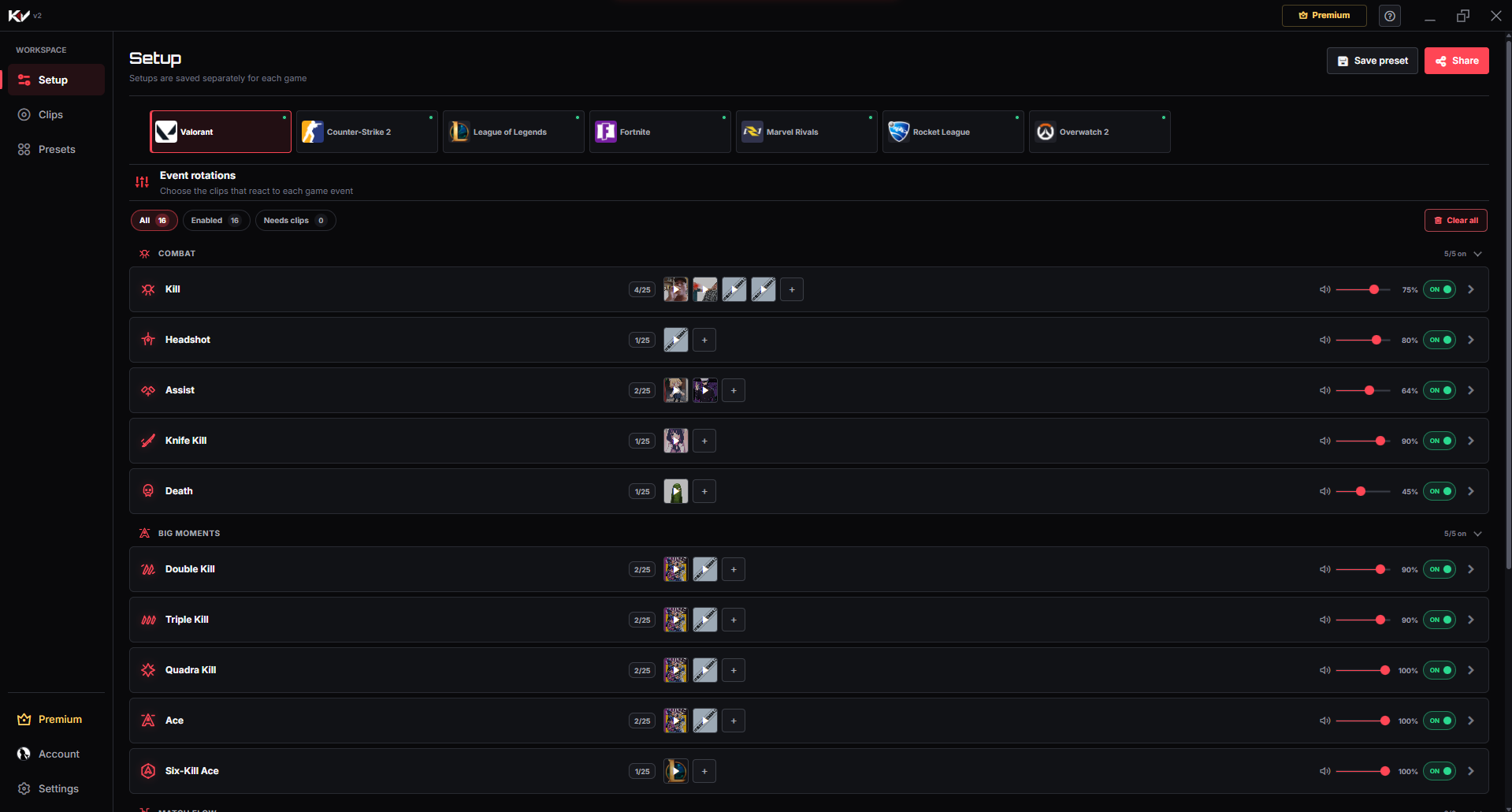
Verified Valorant events in Killer Vibe
These labels come from the released Killer Vibe event catalog reviewed on September 27, 2026. Runtime availability can change after Valorant or Overwolf updates, so the current Setup screen remains the final check.
- Kill
- Assist
- Headshot
- Death
- Match End
- Match Start
- Victory
- Defeat
- Attack-Side Start
- Defense-Side Start
- Double Kill
- Triple Kill
- Quadra Kill
- Ace
- Six-Kill Ace
- Knife Kill
Test the event-driven workflow
- Install Killer Vibe through its Overwolf listing, then open the Setup workspace.
- Select Valorant and start with one common event shown in the app.
- Add one short clip, preview it, and set a conservative event volume.
- Select the output device you actually monitor and make sure the event is enabled.
- Launch Valorant, trigger that event in a low-risk mode, and confirm playback.
- If you stream, record a short OBS sample and confirm the same output route is captured.
See the verified Valorant events and audio limits before building a larger setup. For the general workflow, use the Killer Vibe setup guide.
Limitations to know
- Event-driven playback is limited to the supported labels shown in Killer Vibe.
- Game-event availability can change when Valorant or Overwolf updates its integration.
- Killer Vibe does not send clips into your microphone or Valorant voice chat.
- A stream hears the reaction only when its software captures the selected output route.
- No soundboard removes the need to keep important gameplay audio clear and test performance on your own PC.